Beta · version 0.1.0
Try the next version first.
Test versions of the Fieldra app and Fieldra Desktop, downloaded straight from this site, before they reach the app stores. They have the newest features and may still have rough edges.
For everyday work, use the store versions.
They update themselves and are checked by the stores: the phone app on Google Play and the App Store, Fieldra Desktop on the Mac App Store and the Microsoft Store. Try a test version on a copy of a project, or a device you don’t depend on, first.
The phone app
On Android, install the APK directly. On iPhone and iPad, test versions come through Apple’s TestFlight app.
Android
- 1Open this page on the Android phone and tap Download APK.
- 2Open the downloaded file. If asked, allow your browser to install unknown apps (Settings › Apps › Special access › Install unknown apps).
- 3Tap Install, then open Fieldra. A store version installed later replaces it only after you uninstall this one.
iPhone and iPad
- 1Install TestFlight from the App Store.
- 2Open this page on the iPhone or iPad and tap Join on TestFlight.
- 3Tap Accept, then Install. TestFlight tells you when a new test version is ready.
See Fieldra in action
Your workspace, maps and tools, ready for the field.
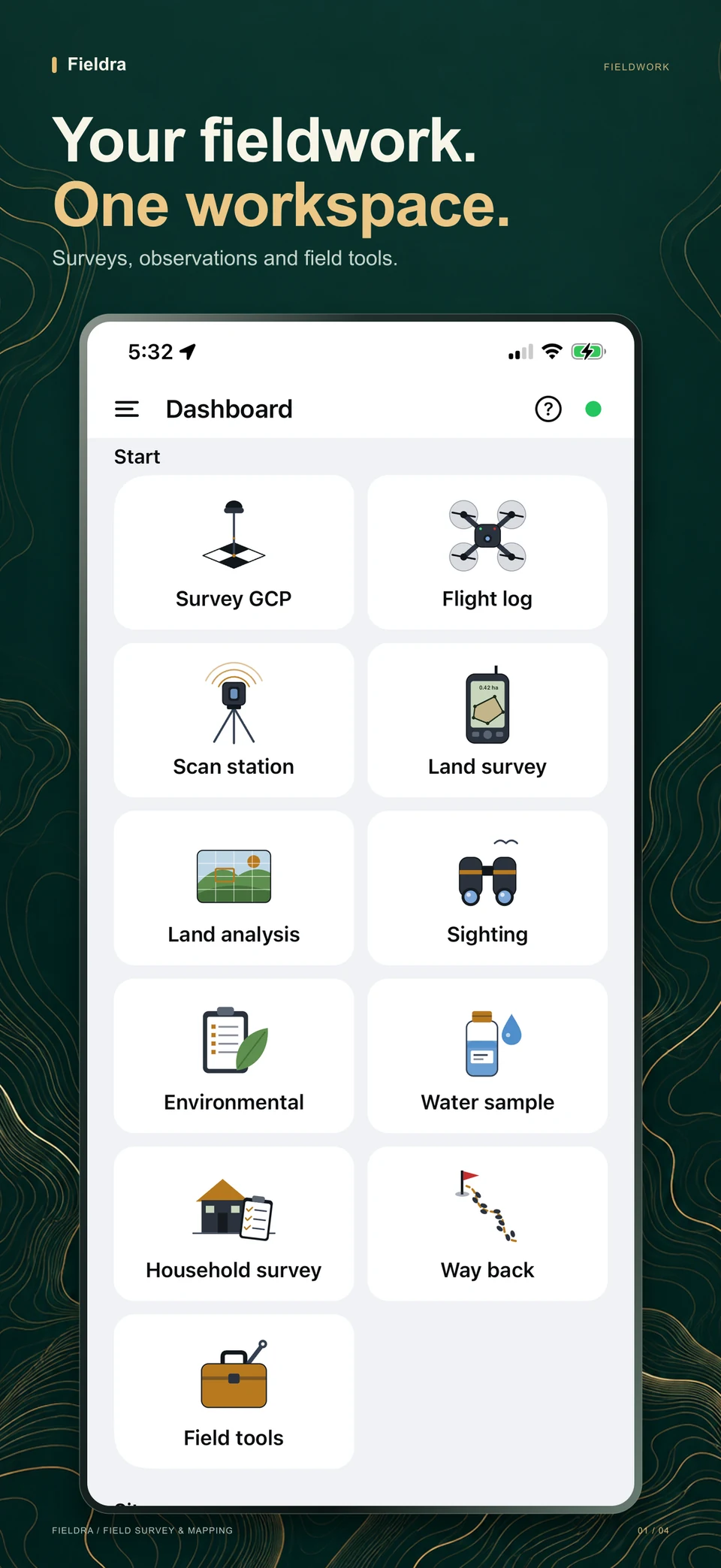
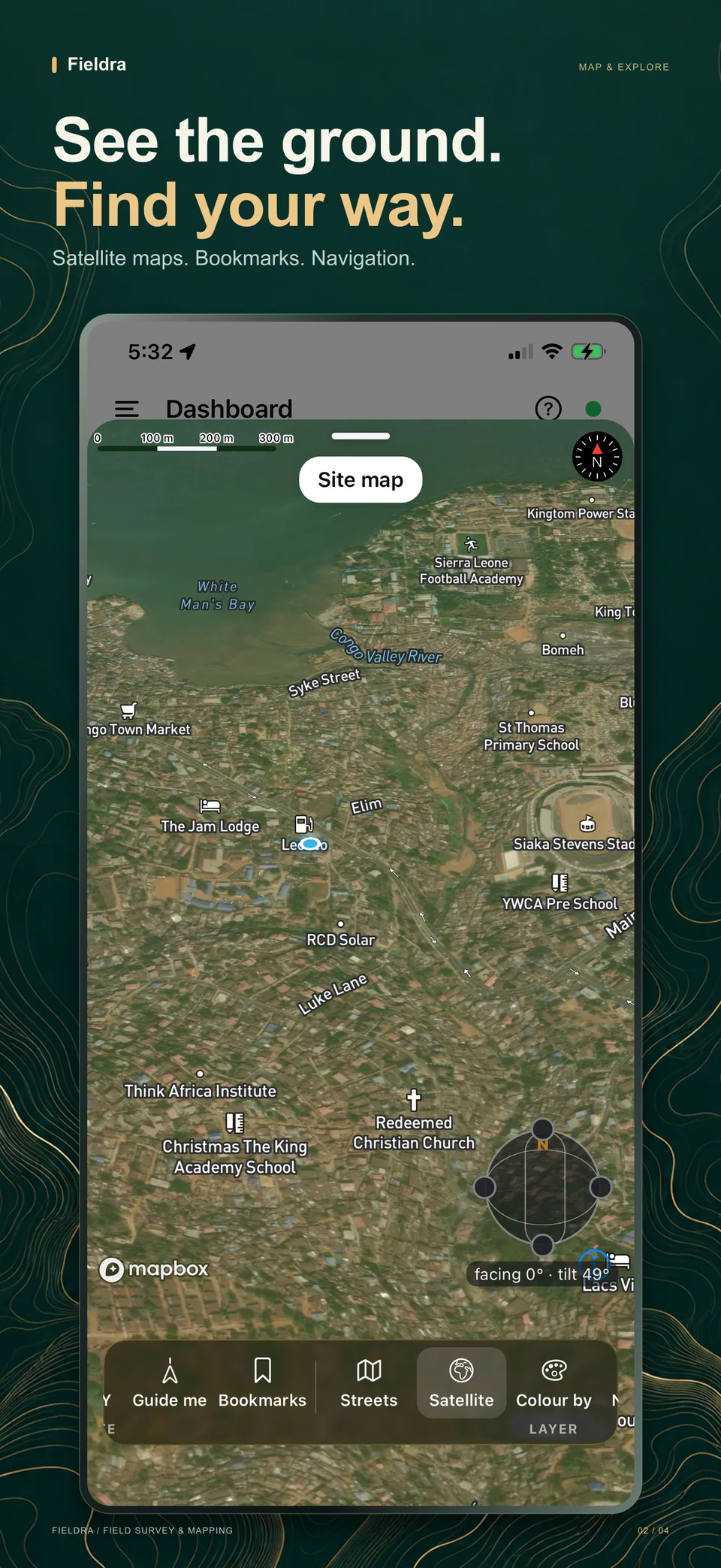
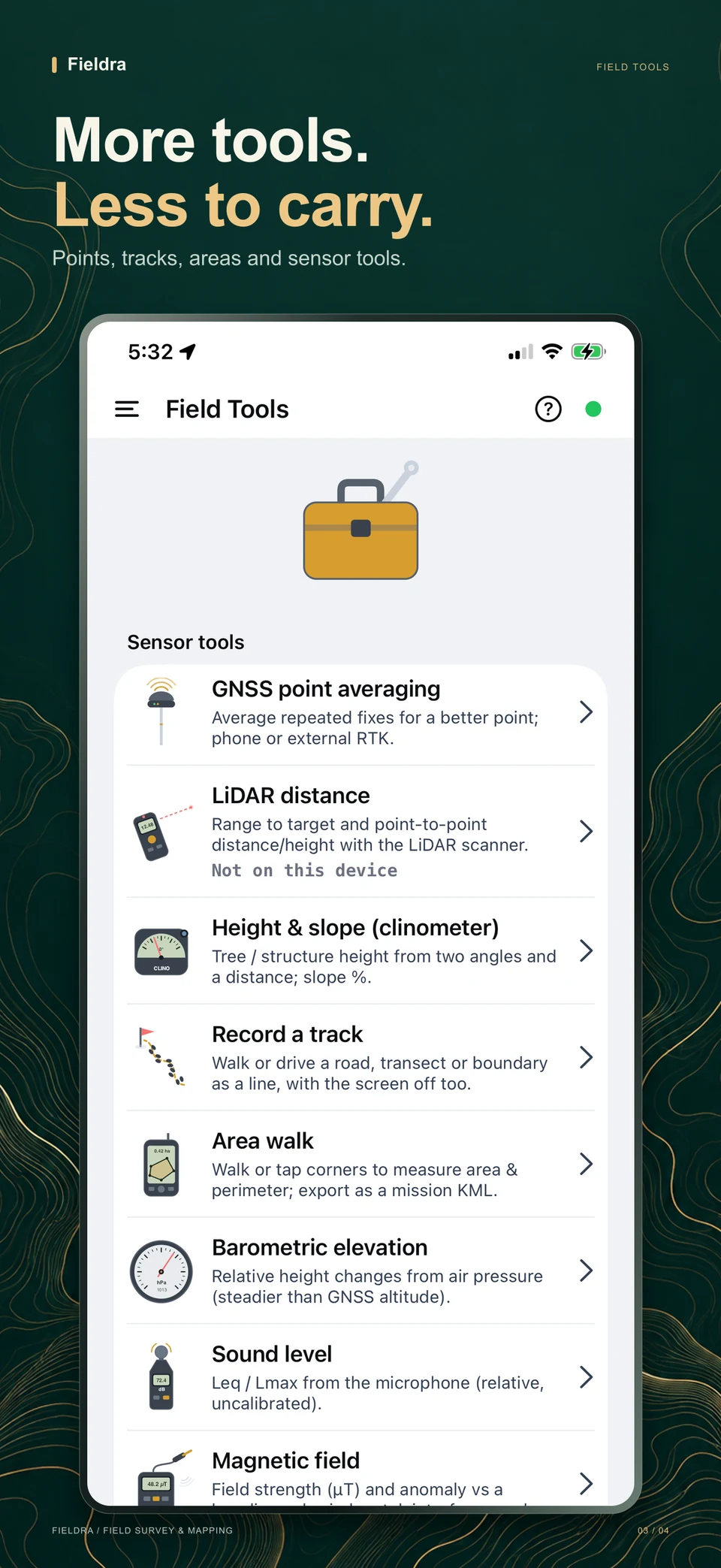
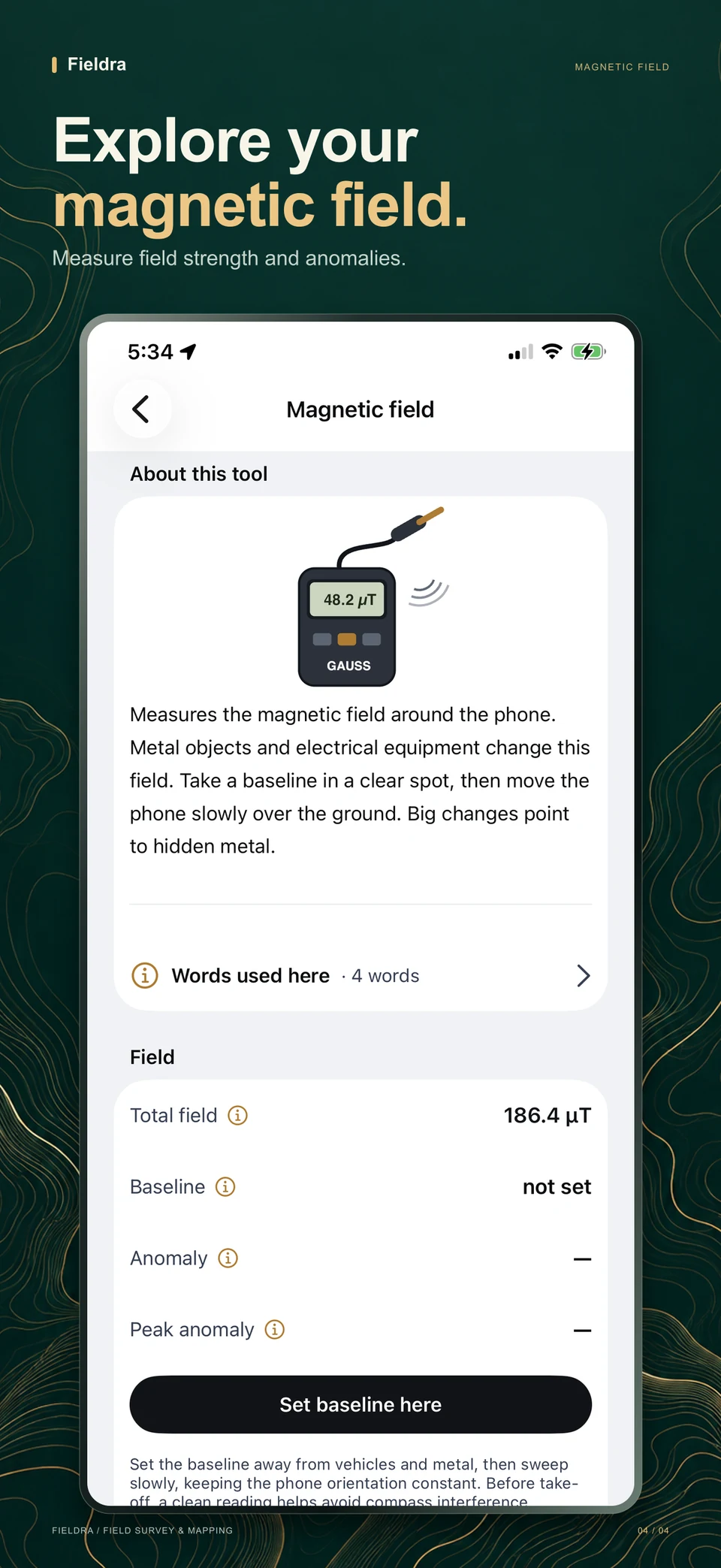
Swipe to explore. Open any screenshot for a closer look.
Fieldra Desktop
Every file for macOS and Windows. The one for this computer is marked; if you are not sure, pick the first one for your system.
macOS
- .dmg
Any Mac (Universal)
Runs natively on Apple silicon and Intel Macs. Pick this if you are not sure.
- .dmg
Apple silicon
Macs with an M1, M2, M3 or M4 chip (most Macs from 2021 on). Smaller download.
- .dmg
Intel
Macs with an Intel processor (most Macs before 2021).
Install
- 1Open the downloaded .dmg and drag Fieldra into Applications.
- 2Open Fieldra from Applications. If macOS says it can’t check the app, open System Settings › Privacy & Security and choose Open Anyway.
- 3Allow it to find devices on your local network when asked, so phones can send it data.
Windows
- Installer .exe
Any Windows PC (installer)
One installer for 64-bit Intel/AMD and ARM PCs; it installs the right one. Pick this if you are not sure.
- Installer .exe
64-bit (x64)
Most Windows 10 and 11 PCs with an Intel or AMD processor.
- Installer .exe
ARM64
Windows on ARM, e.g. Surface Pro X and Copilot+ PCs with Snapdragon chips.
- Portable .zip
32-bit (x86)
Older PCs running 32-bit Windows 10. Portable: unzip and run, no install.
- Portable .zip
64-bit (x64), portable
No installer: unzip and run, e.g. from a USB stick or without admin rights.
- Portable .zip
ARM64, portable
No installer: unzip and run.
Install
- 1Run the installer (or unzip the portable version and open Fieldra.exe).
- 2If Windows shows “Windows protected your PC”, choose More info › Run anyway.
- 3Allow Fieldra through the firewall on private networks when asked, so phones can send it data.
Inside Fieldra Desktop
From the project map to a report you can share.
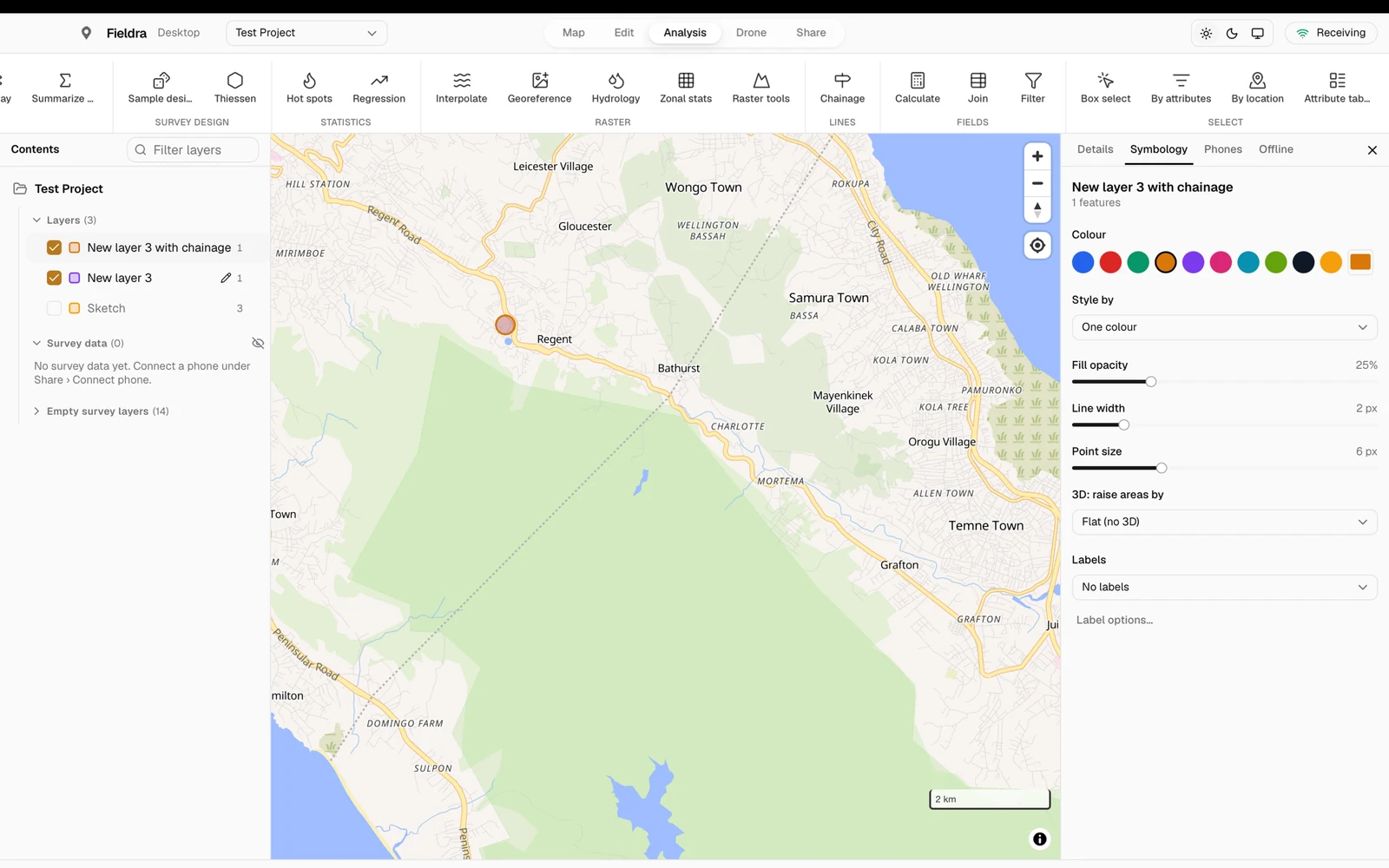
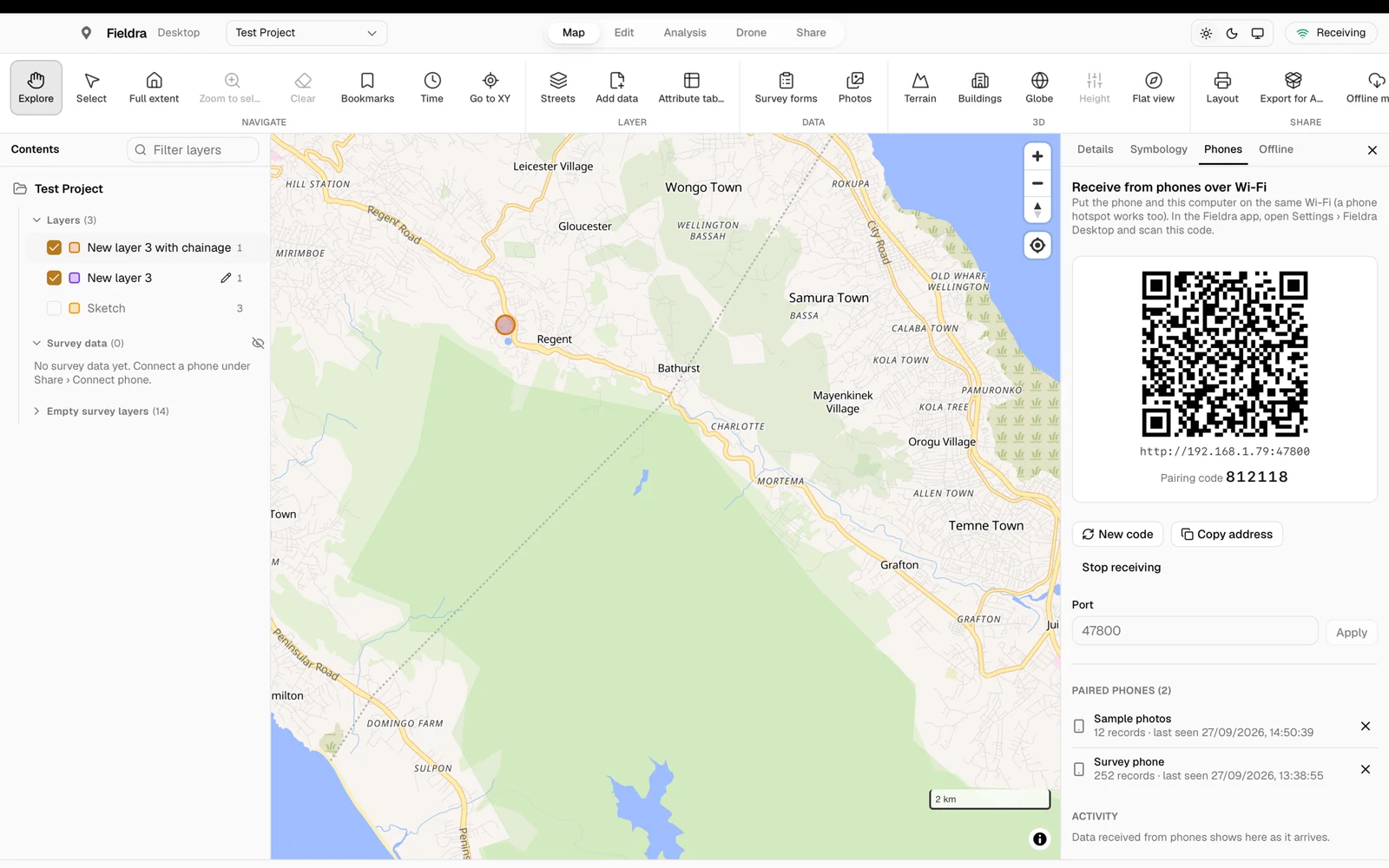
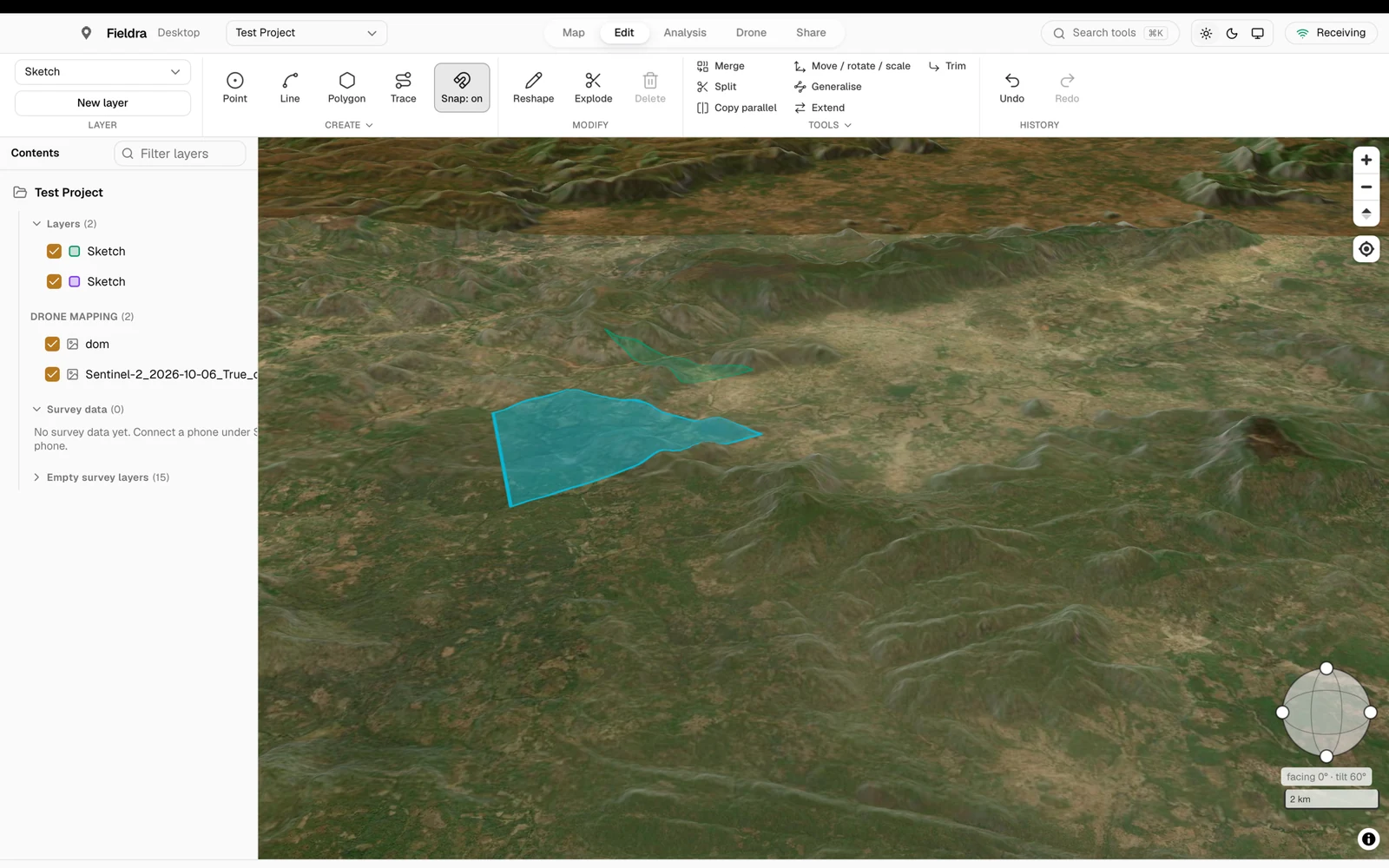
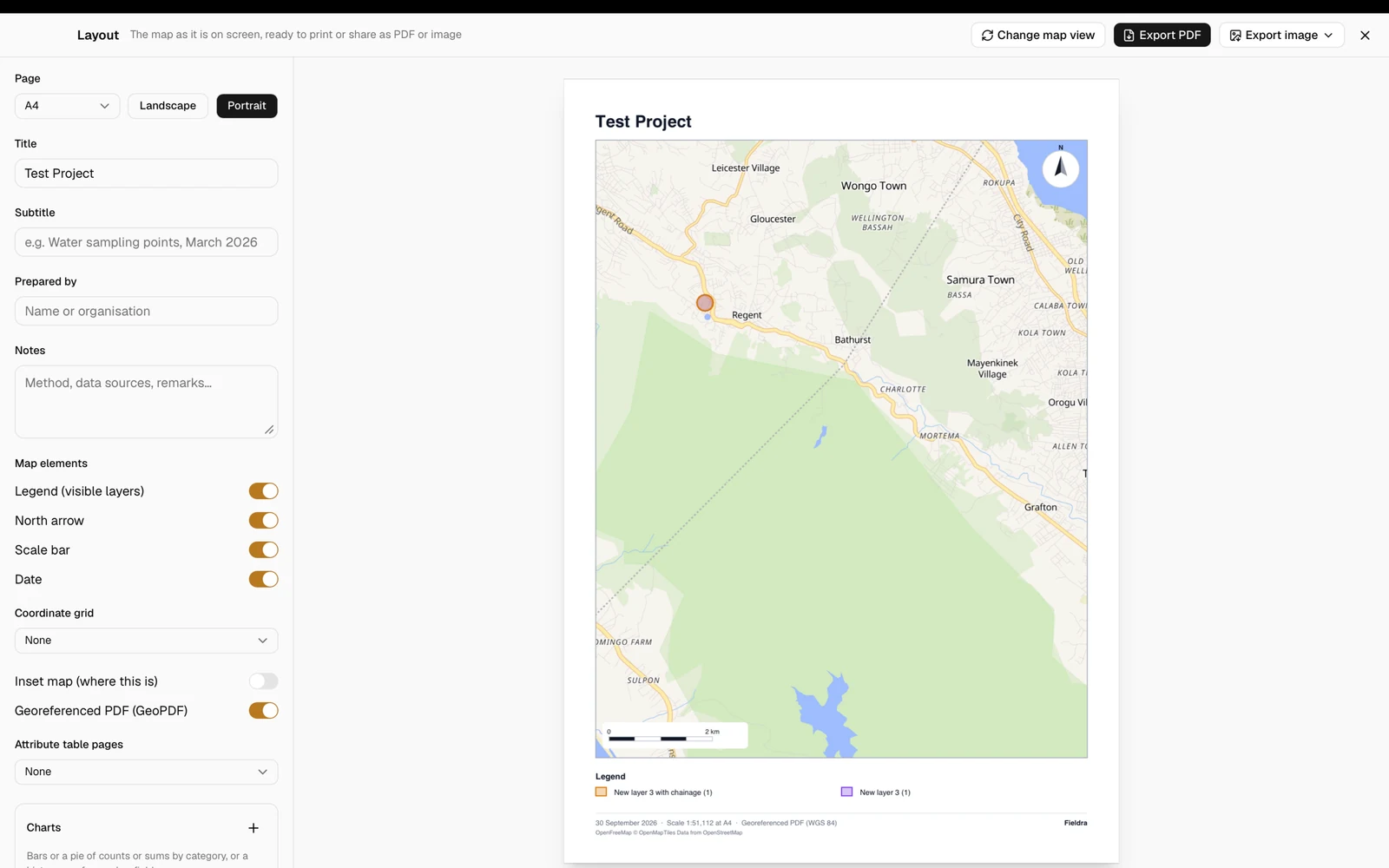
Swipe to explore. Open any screenshot for a closer look.
Found a problem?
Tell us what you did, what you expected and what happened, with the version number and a screenshot if you can: info@luminex-technology.com.